

Tracker Constructor
Visual configuration tool for building and previewing embedded tracking widgets. Configure all options through a form, preview live, and generate ready-to-use embed URLs.
Tracker Constructor
Overview
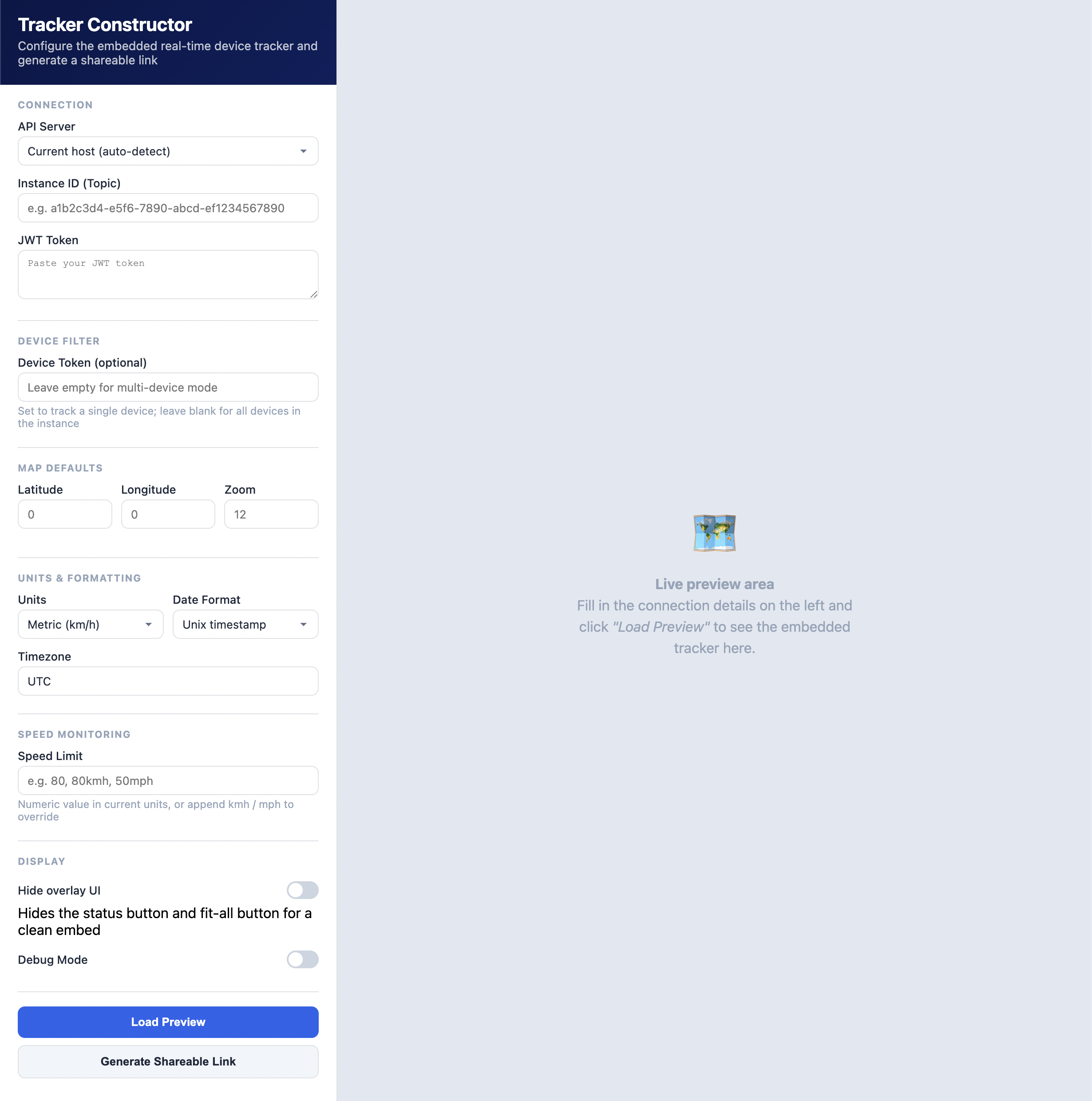
The Tracker Constructor is a visual configuration tool that helps developers build and preview embedded tracking widgets. Instead of manually assembling URL parameters, you use a form-based interface to configure every aspect of the tracker, see a live preview, and generate a ready-to-use URL — all without writing code.
Access the constructor at the root of your frontend domain (e.g. [https://your-frontend.com/](https://spa.telematicssdk.com/live-tracking/)).
How It Works
The constructor has a two-panel layout:
- Left panel — Configuration form with all available settings
- Right panel — Live iframe preview of the embedded tracker
Workflow
- Configure — Fill in connection details, choose display preferences, set optional filters
- Preview — Click "Load Preview" to render the tracker in the right panel with your settings
- Generate — Click "Generate Shareable Link" to produce a URL with all parameters encoded
The generated URL can be used directly in an <iframe> tag or shared with other developers on your team.
Configuration Sections
Connection
| Field | Required | Description |
|---|---|---|
| API Server | Yes | Choose: Production (auto-detected), Current host (auto-detect), or Custom URL |
| Instance ID | Yes | Your tracking instance UUID |
| JWT Token | Yes | Authentication token for the WebSocket connection |
The API Server dropdown automatically detects the production endpoint from the deployment configuration. Select "Custom URL" to point at a self-hosted backend.
Device Filter
| Field | Required | Description |
|---|---|---|
| Device Token | No | Set to track a single device. Leave empty for multi-device mode (all devices in the instance). |
Map Defaults
| Field | Default | Description |
|---|---|---|
| Latitude | World view | Initial map center latitude |
| Longitude | World view | Initial map center longitude |
| Zoom | 2 (world) / 13 (with coordinates) | Initial zoom level (3–18) |
When latitude and longitude are provided, the map starts centered on that location. Otherwise it opens with a global view.
Units & Formatting
| Field | Options | Default |
|---|---|---|
| Units | Metric (km/h) / Imperial (mph) | Metric |
| Date Format | Unix timestamp / ISO 8601 / Human-readable | Unix |
| Timezone | Any timezone string (e.g. America/New_York) | UTC |
Speed Monitoring
| Field | Format | Description |
|---|---|---|
| Speed Limit | Number, or number + unit (80, 80kmh, 50mph) | Devices exceeding this limit are highlighted on the map. When no unit suffix is given, the current unit system applies. |
Display
| Toggle | Default | Description |
|---|---|---|
| Hide overlay UI | Off | Hides the floating status button and fit-all button for a clean, minimal embed. Recommended for customer-facing iframes. |
| Debug Mode | Off | Enables detailed console logging for troubleshooting integration issues |
Using the Generated URL
Embed in an iFrame
<iframe
  src="GENERATED_URL_HERE"
  style="width: 100%; height: 600px; border: none;"
  allow="clipboard-write">
</iframe>
Share with Your Team
The generated URL contains all configuration as query parameters. Share it with other developers for review, testing, or integration into different parts of your application.
Iterate Quickly
Adjust any setting in the left panel and click "Load Preview" again to see the change immediately — no page reload required.
Parameter Mapping
The constructor generates a URL with the following query parameters:
| Constructor Field | URL Parameter | Included when |
|---|---|---|
| API Server / Custom URL | apiBase | Non-empty (custom or production) |
| Instance ID | instanceId | Always |
| JWT Token | jwt | Always |
| Device Token | deviceToken | Non-empty |
| Latitude | lat | Non-empty |
| Longitude | lng | Non-empty |
| Zoom | zoom | Non-empty |
| Units | units | Always |
| Date Format | date_format | Always |
| Timezone | timezone | Always |
| Speed Limit | maxspeed | Non-empty |
| Hide overlay UI | hideUI=true | Checked |
| Debug Mode | debug=true | Checked |
Tips
- Start simple — Enter just the Instance ID and JWT to see the basic tracker, then add options incrementally
- Test single device mode — Enter a device token to verify that auto-centering and trip history work for your use case
- Preview before sharing — Always click "Load Preview" before generating a link to confirm the configuration is correct
- Customer embeds — Enable "Hide overlay UI" for any embed that will be shown to end users or customers
- Debug integration issues — Enable "Debug Mode" to see detailed connection and data flow logs in the browser console
Related
- Embedded SPA via iFrame — Full reference for all URL parameters and features
- Driver Display Names — Set up human-readable names on map markers
- Location Sharing — Create share links from the embedded tracker
Updated 5 months ago